
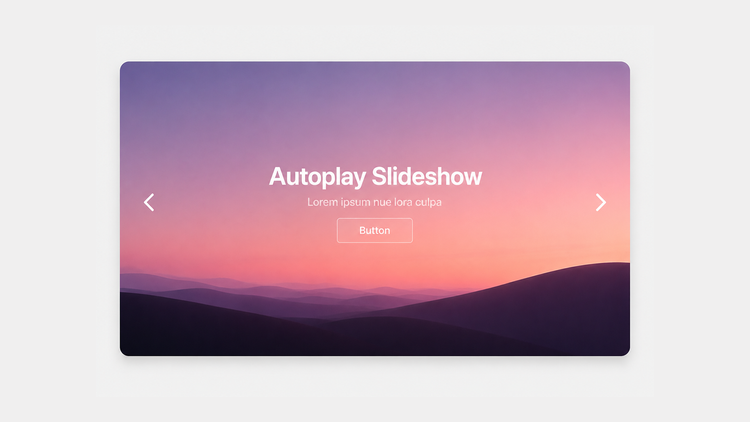
Super Autoplay Slideshow
This Super Plugin moved from our legacy site. If you previously purchased, to unlock.
The original library, featuring hundreds of copy-and-paste plugins for Squarespace. These legacy plugins are preserved as they were originally released and are available as-is. For no-code plugins with visual editing and live previews, explore the current plugin library.
Overview
Build a full-width autoplay slideshow with headlines and buttons in Squarespace 7.1.
Works with Squarespace 7.1
Requires Core/Business Plan or Higher
Uses CSS Editor and Code Injection
Plugin Delivery
A classic Super Plugin from the original Ghost Plugins library. Purchase once to unlock the code on this page and use it on unlimited websites. Included with Ghost+.
Squarespace Compatibility & Requirements
Compatibility notes preserved from the original release.
Install Steps
Follow each step in order. Code boxes unlock after purchase, with Ghost+, or with your original password.
Step 1. Add this code to Header Code Injection
Unlock to view and copy the code.
Step 2. Add this code to Footer Code Injection
Unlock to view and copy the code.
Step 3. Add this code to Custom CSS
Unlock to view and copy the code.
Step 4 (a). Customizable Options - Footer Code Injection
These options are available in Footer Code Injection.
Transparent or Solid Header
Text Alignment (Left, Center, or Right)
Autoplay (On or Off)
Autoplay Duration
Step 4 (b). Customizable Options - Custom CSS
These options are available in Custom CSS.
Title Size and Color
Subtitle Size and Color
Mobile Title Size
Mobile Subtitle Size
Text Drop Shadow
Slideshow Height
Mobile Slideshow Height
Step 5. Set Up and Manage Your Slides
Create a new blog page and add a new post with the following inputs. Each input will turn into a certain element within the plugin. Repeat this step for each slide – all items are required for the plugin to work.
Blog Title = Title Text
Blog Image = Image
Blog Excerpt Text (Normal) = Description Text
Blog Excerpt Text (Hyperlink) = Turns Into Button
Why a blog? The blog page is simply used as a workaround to house and manage your slides. You’ll link this blog page to a summary block in the next step.
Step 6. Add a Summary Block
Add a summary block to any page with these settings - this will link the summary block to the blog you just created. All settings are required for the plugin to work.
Select a Page: The Blog Page (From Step 5)
Enable: Title, Image, Excerpt
Layout: List Style
⚠️ Before You Begin - Squarespace Animations
We recommend Squarespace Animations (FLEX) be disabled or a different animation style be used when using this plugin. Squarespace Animations can sometimes conflict with third-party code.
Helpful Tips - Create a Button and Transparent Header (Optional)
To create a button within each slide, add a hyperlink text at the very end of the excerpt . The plugin will turn the hyperlink into a button.
For a transparent header, set the transparentHeaderAboveSlider Footer Code Injection option to true and change the header’s color to Adaptive in header settings.
Plugin Notes
Cannot be used with other plugins that use the List Summary Block.
Squarespace's native List style will not be available.
Fonts styles will be inherited from your paragraph font settings.
Slideshow button will inherit styles set for primary button.
Disabling Squarespace Animations when using this plugin is recommended.
Recommended
Want the current Ghost experience?
Explore the current plugin library for plugins with live previews, built-in customization options, Plugin Studio editing, easier installation, and ongoing updates designed for the latest Ghost experience.
Browse Current Plugins →