
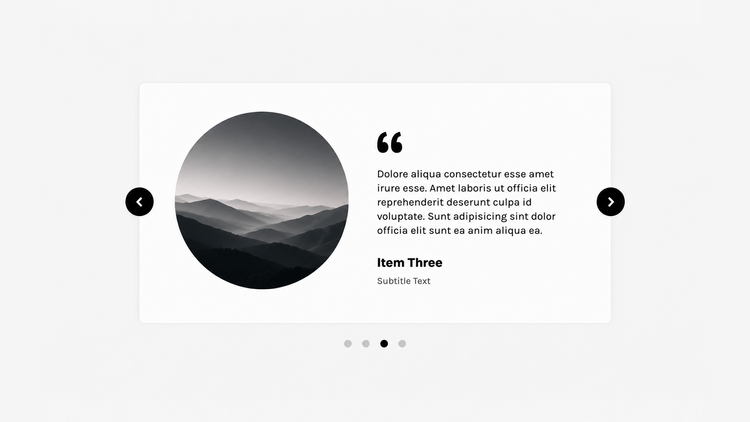
Boldly Testimonial Slider
This Super Plugin moved from our legacy site. If you previously purchased, to unlock.
The original library, featuring hundreds of copy-and-paste plugins for Squarespace. These legacy plugins are preserved as they were originally released and are available as-is. For no-code plugins with visual editing and live previews, explore the current plugin library.
Overview
Show customer quotes in a Squarespace testimonial slider with Boldly.
Works with Squarespace 7.0 (Brine) and 7.1
Requires Core/Business Plan or Higher
Uses CSS Editor and Code Injection
Plugin Delivery
A classic Super Plugin from the original Ghost Plugins library. Purchase once to unlock the code on this page and use it on unlimited websites. Included with Ghost+.
Squarespace Compatibility & Requirements
Compatibility notes preserved from the original release.
Install Steps
Follow each step in order. Code boxes unlock after purchase, with Ghost+, or with your original password.
Step 1. Add this code to Header Code Injection
Unlock to view and copy the code.
Step 2 (a). Add this code to Footer Code Injection - For Squarespace 7.1
Unlock to view and copy the code.
Step 2 (b). Add this code to Footer Code Injection - For Squarespace 7.0 (Brine Family)
Unlock to view and copy the code.
Step 3. Add this code to Custom CSS
Unlock to view and copy the code.
Step 4 (a). Customizable Options - Footer Code Injection
These options are available in Footer Code Injection.
Autoplay (On or Off)
Autoplay Duration
Step 4 (b). Customizable Options - Custom CSS
These options are available in Custom CSS.
Background Color
Main Border Radius
Main Border Style
Subtle Shadow Color
Quote Size and Color
Name Title Size and Color
Tag Meta Size and Color
Arrow Size, Background Color, and Icon Color
Quote Icon Size and Color
Bullet Slider Icon Size and Color
Step 5. Set Up and Manage Your Testimonials
Create a new blog page and add a new post with the following inputs. Each input will turn into a certain element within the plugin. Repeat this step for each testimonial.
Blog Title = Title Text
Blog Tag = Subtitle Text
Blog Image = Image
Blog Excerpt = Quote Text
Why a blog? The blog page is simply used as a workaround to house and manage your testimonials. You’ll link this blog page to a summary block in the next step.
Step 6. Add a Summary Block
Add a summary block to any page with these settings - this will link the summary block to the blog you just created. All settings are required for the plugin to work.
Select a Page: The Blog Page (From Step 5)
Primary Metadata: Tags
Enable: Title, Image, Excerpt
Layout: Carousel Style
⚠️ Important: Add the text boldly (in all lowercase) to the summary block’s header text box.
Plugin Notes
Font family inherits from title and body settings.
Cannot use other plugins that also use the carousel layout.
Squarespace's native carousel layout will not be available.
Troubleshooting (Plugin Not Working)
Primary metadata is set to tags.
The boldly text has been added to the summary’s header box.
A title, excerpt, image, and tag are all required in each post.
If only 3 items are showing, check the summary block’s number of items setting.
Recommended
Want the current Ghost experience?
Explore the current plugin library for plugins with live previews, built-in customization options, Plugin Studio editing, easier installation, and ongoing updates designed for the latest Ghost experience.
Browse Current Plugins →