
Noa Grid Gallery
This Super Plugin moved from our legacy site. If you previously purchased, to unlock.
The original library, featuring hundreds of copy-and-paste plugins for Squarespace. These legacy plugins are preserved as they were originally released and are available as-is. For no-code plugins with visual editing and live previews, explore the current plugin library.
Overview
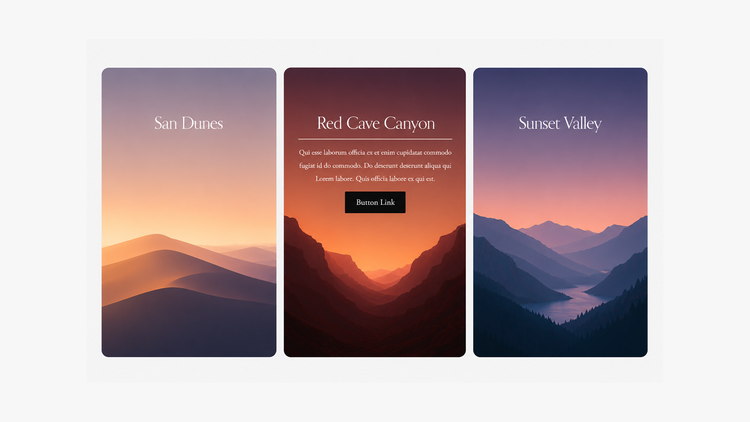
Reveal image descriptions and button links on hover in a Squarespace Grid Gallery Block.
Works with Squarespace 7.0 and 7.1
Plugin Delivery
A classic Super Plugin from the original Ghost Plugins library. Purchase once to unlock the code on this page and use it on unlimited websites. Included with Ghost+.
Squarespace Compatibility & Requirements
Compatibility notes preserved from the original release.
Install Steps
Follow each step in order. Code boxes unlock after purchase, with Ghost+, or with your original password.
Step 1. Add this code to Header Code Injection
Unlock to view and copy the code.
Step 2 (a). Add this code to Footer Code Injection - For Squarespace 7.1
Unlock to view and copy the code.
Step 2 (b). Add this code to Footer Code Injection - For Squarespace 7.0
Unlock to view and copy the code.
Step 3. Add this code to Custom CSS
Unlock to view and copy the code.
Step 4 (a). Customizable Options - Footer Code Injection
These options are available in Footer Code Injection.
Text Alignment
Step 4 (b). Customizable Options - Custom CSS
These options are available in Custom CSS.
Title Size and Color
Description Size and Color
Line Color and Thickness
Button Color and Text Color
Overlay on Hover Color
Image Border Radius
Text Position
Step 5. Add a Gallery Block
Add a gallery block to any page with these required settings.
Enable: Lightbox
Design: Grid Style
⚠️ Important: Make sure you are adding the gallery block and not the gallery page section.
Step 6. Upload Images To Gallery Block
To upload images to the gallery block, click the + (plus icon) in the bottom right of the gallery block’s settings. Then add the following inputs and repeat this for each image.
Title
Description
Hyperlink Text (Turns Into a Button and Links Image)
Note: Do not use the clickthrough box to link the image – instead create a hyperlink.
⚠️ Grid Gallery Blocks in Squarespace 7.1
By default, Squarespace 7.1 does not offer gallery blocks (unless you are a Squarespace Circle member).
If you are not a Circle Member or don’t have access to the Gallery Block, we can help add the gallery block to your 7.1 website – free of charge!
Plugin Notes
Do not upload a mix of videos and images in the same gallery.
Font family inherits from title and body settings.
Cannot be used with other plugins that use the grid gallery block.
Mobile will show content as static as mobile does not support hover.
Troubleshooting (Plugin Not Working)
Disable AJAX settings in site styles (for 7.0 websites)
For best functionality, we recommended that only one grid gallery block be used per page.
Not compatible with image blocks or gallery pages.
Recommended
Want the current Ghost experience?
Explore the current plugin library for plugins with live previews, built-in customization options, Plugin Studio editing, easier installation, and ongoing updates designed for the latest Ghost experience.
Browse Current Plugins →