
Balance Summary Block
This Super Plugin moved from our legacy site. If you previously purchased, to unlock.
The original library, featuring hundreds of copy-and-paste plugins for Squarespace. These legacy plugins are preserved as they were originally released and are available as-is. For no-code plugins with visual editing and live previews, explore the current plugin library.
Overview
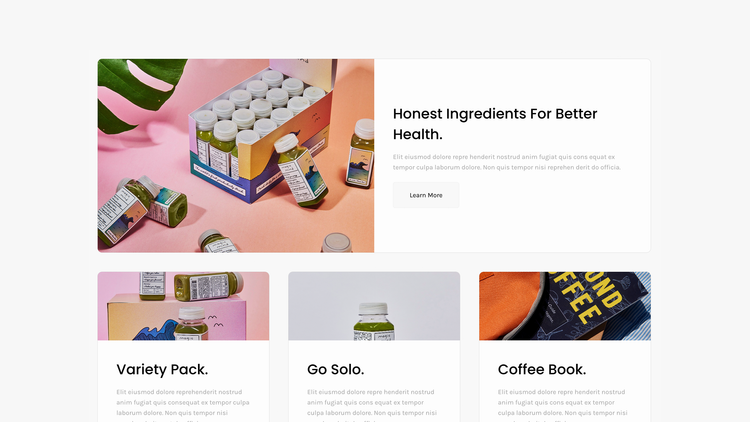
Set one, two, or three items per row in a Squarespace Summary Block with Balance.
Works with Squarespace 7.1
Requires Core/Business Plan or Higher
Uses CSS Editor and Code Injection
Plugin Delivery
A classic Super Plugin from the original Ghost Plugins library. Purchase once to unlock the code on this page and use it on unlimited websites. Included with Ghost+.
Squarespace Compatibility & Requirements
Compatibility notes preserved from the original release.
Install Steps
Follow each step in order. Code boxes unlock after purchase, with Ghost+, or with your original password.
Step 1. Add this code to Header Code Injection
Unlock to view and copy the code.
Step 2. Add this code to Footer Code Injection
Unlock to view and copy the code.
Step 3. Add this code to Custom CSS
Unlock to view and copy the code.
Step 4 (a). Customizable Options - Footer Code Injection
These options are available in Footer Code Injection.
Summary Item Spacing
Button Text (Applies To All Items)
Step 4 (b). Customizable Options - Custom CSS
These options are available in CSS.
Summary Width, Margin, and Padding
Summary Background, Border, and Border Radius
Zoom Effect On Hover
Image Height (Desktop and Mobile)
Text Alignment
Title Size and Color
Excerpt Size, Color, Line Height, and Spacing
Button Font Size, Font Color, Background, Padding, and Border Radius
Button Top Spacing
Step 5. Set Up and Manage Your Content
Create a new blog page and add a new post with the following inputs. Each input will turn into a certain element within the plugin. Repeat this step for each item. All are required for the plugin to work.
Blog Title = Title Text
Blog Image = Image
Blog Excerpt Box = Description Text
Blog Tags = 1, 2 or 3 Items Per Row (See Step 6)
Why a blog? The blog page is simply used as a workaround to house and manage your testimonials. You’ll link this blog page to a summary block in the next step.
Step 6. Organizing Per Row (Assigning Tags)
You can set the number of items per row – with 3 being the max. Add a percentage to each blog post’s tags setting to start organizing your items on a per row basis – (see the screenshot in the original guide).
100% = Apply to 1 post to make it the only item in a row
50% = Apply to 2 posts to make them the only 2 items in a row
33.33% = Apply to 3 posts to make them the only 3 items in a row
Some organization will be required as the items per row option must be applied in the order the posts were created and published.
We recommend creating all posts and then assigning % tags. As new posts are added, this will make it easier to adjust items per row.
Step 7. Add a Summary Block
Add a summary block to any page with these settings - this will link the summary block to the blog you just created. All settings are required for the plugin to work.
Select a Page: Blog (From Step 5)
Primary Metadata: Tags
Enable: Title, Image, Excerpt
Layout: Carousel Style
Important: Add the text balance to the summary block’s header text box.
⚠️ Before You Begin - Squarespace Animations
We recommend Squarespace Animations (FLEX) be disabled or a different animation style be used when using this plugin. Squarespace Animations can sometimes conflict with third-party code.
Helpful Tip – Link Each Item To a Different Page or External Site
Linking each item to a page or external site is easy and can be done with Squarespace’s Source URL setting.
Go to the blog post’s settings and add in the link to the Source URL box and enable the Link Post Title To Source URL toggle – (see the screenshot in the original guide).
Plugin Notes
Font family inherits from title and body settings.
Cannot use other plugins that also use the carousel layout.
Squarespace's native carousel layout will not be available.
You are not able to randomize the items per row order.
Troubleshooting (Plugin Not Working)
Primary metadata is set to tags.
The balance text has been added to the summary’s header box.
A title, excerpt, image, and tag are all required in each post.
If only 3 items are showing, check the summary block’s number of items setting.
Recommended
Want the current Ghost experience?
Explore the current plugin library for plugins with live previews, built-in customization options, Plugin Studio editing, easier installation, and ongoing updates designed for the latest Ghost experience.
Browse Current Plugins →